Setting your page's URL
Choose the address your visitors (and codes) will use.
Every published page gets a web address - the link people can type, tap, or share. Making it memorable takes a minute.
Changing your page's URL
- Open the page and go to the Settings tab.
- On the Page URL card, click the current URL.
- In the Change Page URL dialog, type the address you want. A live preview under the field shows exactly how it will be saved - lowercase, with spaces turned into hyphens.
- Click Save.
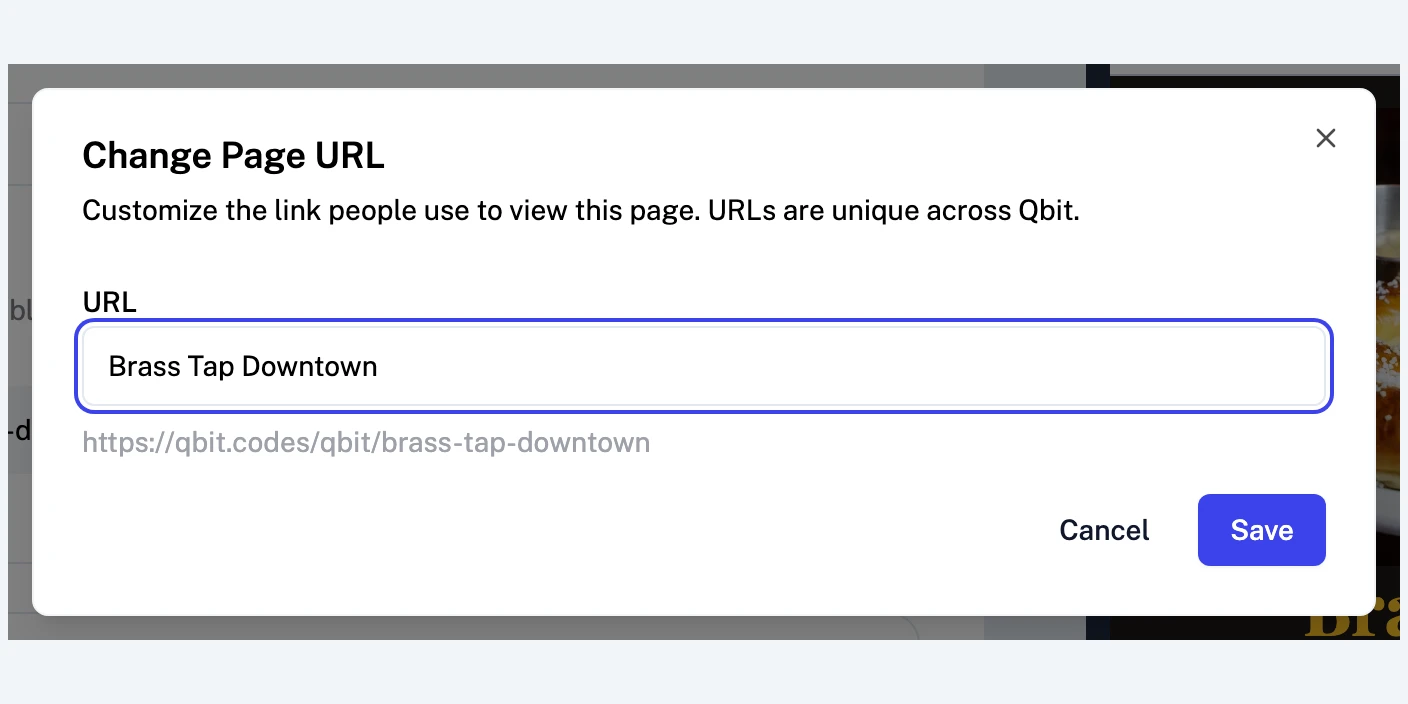
Your published page now lives at qbit.codes/qbit/your-url.
Choosing a good URL
- Short and speakable - you may end up reading it aloud ("find us at qbit codes slash qbit slash tipsy-owl").
- Name the thing, not the moment -
tipsy-owl-menuoutlivesspring-2026-menu-v2. - Match your brand - it appears in the share sheet, in messages, and in search results.
URLs are unique across all of Qbit, so the classics go fast - if your first choice is taken, the dialog will tell you.
Will changing the URL break my QR codes?
No - and this matters. Alongside its friendly URL, every page keeps a permanent internal link that never changes, and QR codes use that. Rename the URL as often as you like; every printed code keeps working.
The place to be careful is anywhere you've written out the old URL - a bio link, an email, another website. Update those by hand after a change.
While you're on the Settings tab
Fill in Social Preview Settings too (title, description, and image) - that's what shows when your link is shared in a message or on social media. A page that unfurls with a real image and title gets noticeably more taps than a bare link.
Still stuck? Email support@qbit.codes.