Create your first QR code
A five-minute quickstart from blank dashboard to printed code.
Let's get you from zero to a scannable, printable code. Five minutes, start to finish.
-
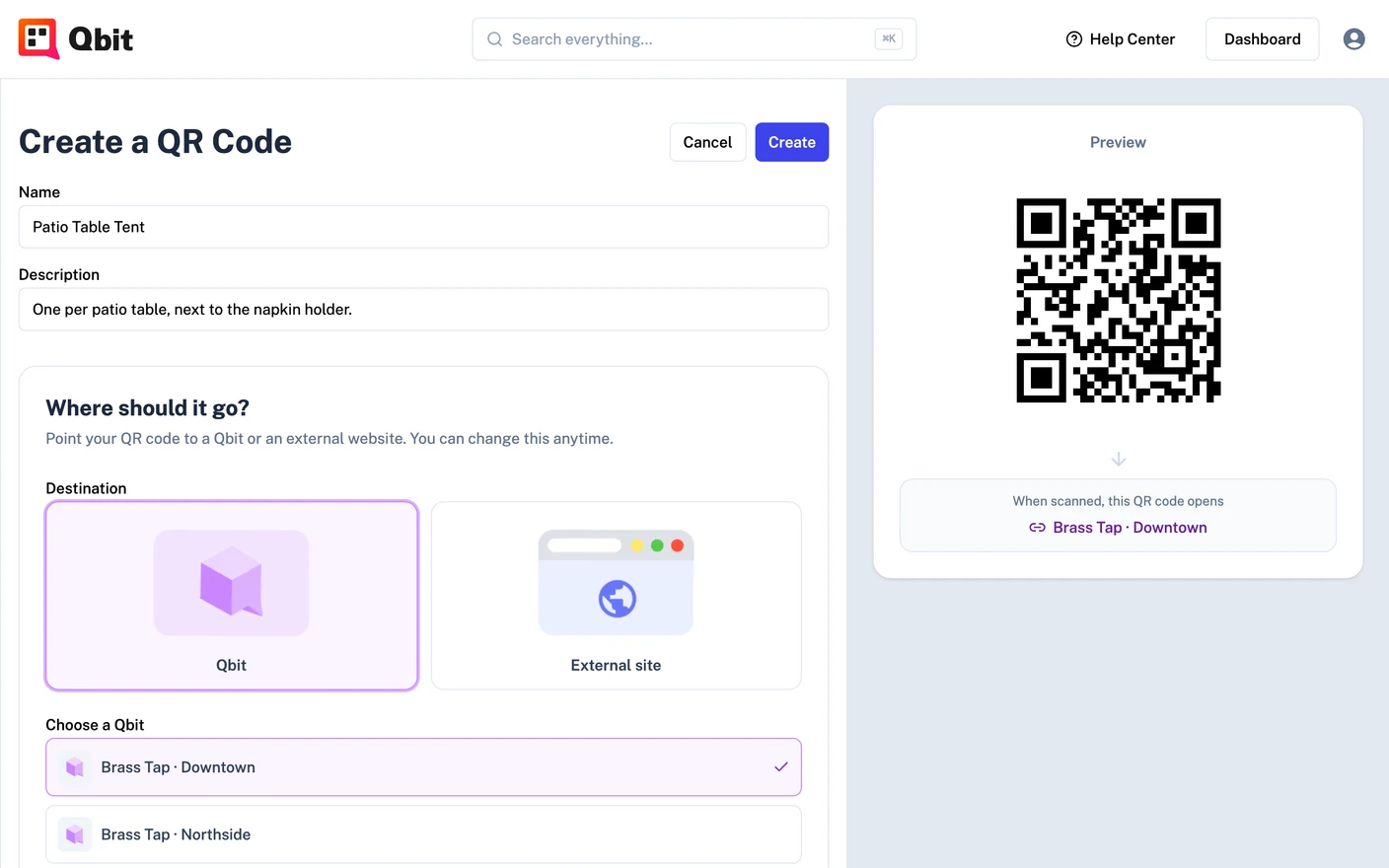
Start the code. From your Dashboard, click New QR code (or go to QR Codes → Create a QR Code).
-
Name it something you'll recognize in a list later - "Front window poster" beats "My first code".
-
Point it somewhere. Choose a destination:
- External site - paste any URL,
https://included. Easiest for a first run: use your existing website. - Qbit - a page built in Qbit. (No pages yet? Skip ahead - you can repoint the code at one after you build it.)
- External site - paste any URL,
-
Make it yours. In the design section, pick a template or choose your colors and drop in a logo. The preview updates live, and built-in checks warn you if a choice would hurt scannability. Black-on-white is always a safe start.
-
Click Create. You land on the code's page with everything in one place.
-
Scan it yourself. Point your phone's camera at the on-screen code and follow it through. (For later checks, the Test link opens the destination without counting as a scan.)
-
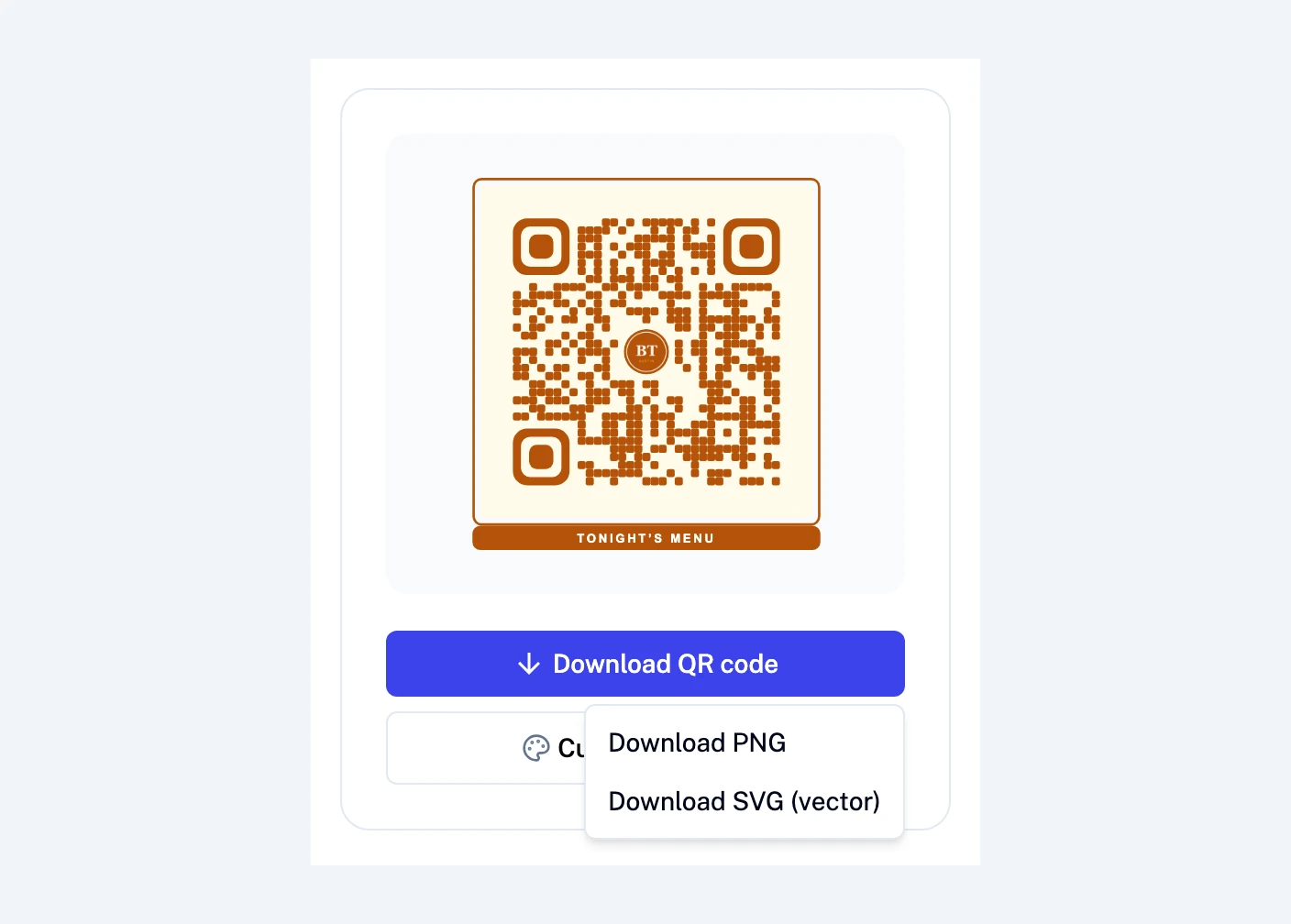
Download it. Click Download QR code - PNG for screens and quick prints, SVG for professional print jobs.
That's a real, working dynamic code. Two things to remember as you start using it:
- You can change where it points anytime, even after printing - that's the whole idea.
- Before a big print run, spend five minutes on the pre-print checklist.
Still stuck? Email support@qbit.codes.